What is Bookmarklet?
Bookmarklet is called a small bookmark in Chinese. The difference from ordinary bookmarks is thatIt is a string of JavaScript instead of a URL. For example, engineers can write a command: tell me what the rel canonical tag of the current webpage is. After putting this command into the browser's bookmark bar, when you want to check the website in the future, you only need to click on the small bookmark, and the answer will be directly told to you!How to use
The advantage of bookmarklets is that they are super easy to use. Even if you don’t know how to code, as long as you find someone to share it (like this article), drag the link to the bookmark bar for easy use in the future.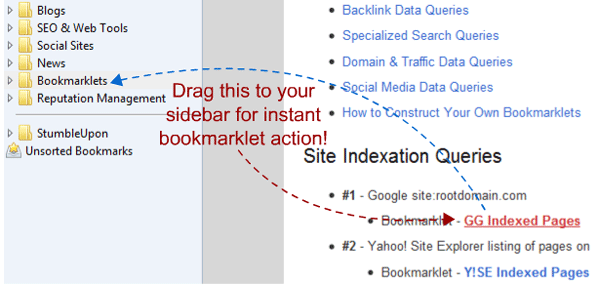
(Credit: Rand from Moz)
10 commonly used bookmarks for SEOs
Listed below are some of my most commonly used functions, including checking meta robots tag, canonical tag, Wayback Machine, Google Page Speed Insights, opening Open Site Explorer...etc., without further ado, let’s try it out together!1. Check how many pages of the current website are indexed
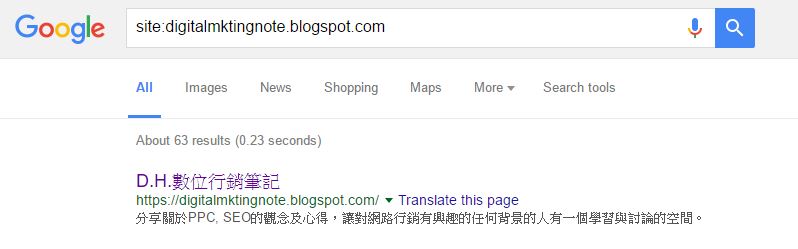
Bookmarklet: Site Search(site:+domain)Enter site:www.example.com into Google to find out how many pages of a website are indexed by Google. This command is definitely very familiar to most SEOs, and this small bookmark allows you to search for Site+domain no matter which page on the website you are on without having to copy and paste it back and forth.
2. Check whether the current web page is indexed
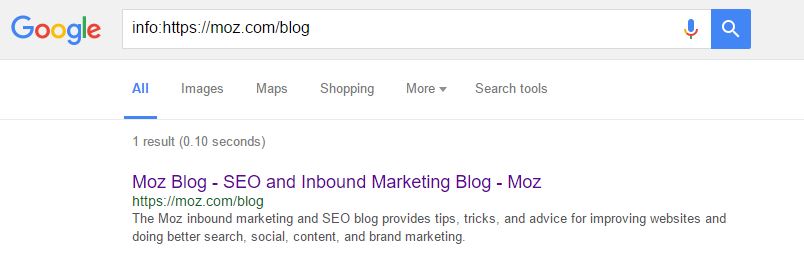
Bookmarklet: Info Search(site:+current page)This is the only bookmarklet I will introduce in this article that I wrote myself XD. It is mainly used to check whether the current page has been indexed by Google. Suppose you are nowhttps://moz.com/blog, using this bookmark allows you to see whether the page has been indexed, without other pages under /blog appearing.
3. Check the Cache version of the current web page
Bookmarklet: Google CacheThe concepts between Crawl / Index / Cache will not be described in detail. Simply put, this small bookmark allows you to see what the current web page looks like in the eyes of Google. After the web page content is changed, you may often use it to see if Google has noticed the change.

4. Open Open Site Explorer to check the current web page
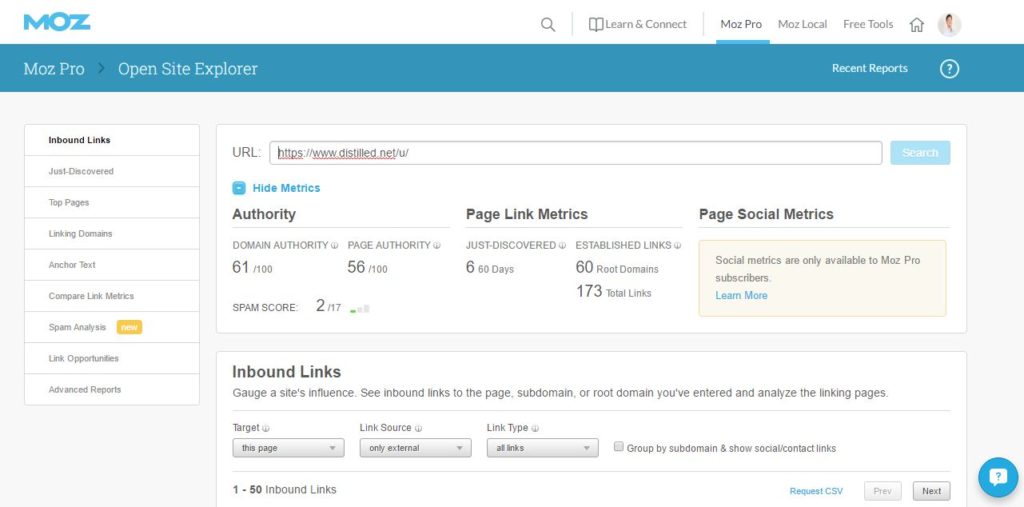
Bookmarklet: Use OSE to view current web page informationI wrote an article before aboutThis tool from Moz Open Site Explorer, you can use this bookmark to open OSE directly and see some basic information about the page you are on (DA/PA, inbound links...etc.), it is very useful for people with Moz Pro!
5. Check the Canonical Tag of the current page
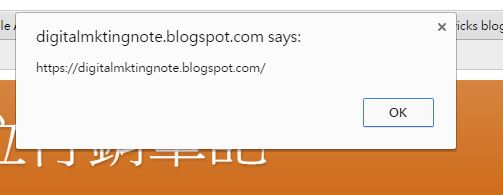
Bookmarklet: Check the canonical tagWhen you click on it, a small box will pop up to tell you whether the current page has a rel canonical tag, and if so, where to canonicalize it, < link href="https://darrenhuang.com/" rel="canonical" />.
6. Check the meta robots tag of the current web page
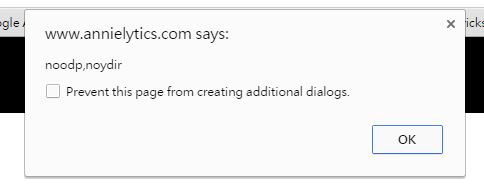
Bookmarklet: Check meta robots tagThis small bookmark will check the meta robots tag of the current website, and will pop up a box to tell you whether there are index/noindex, follow/nofollow, noodp, noydir, nocache, noarchive....etc. instructions in the robots meta tag.
7. Use Wayback Machine to see how the current web page looked before
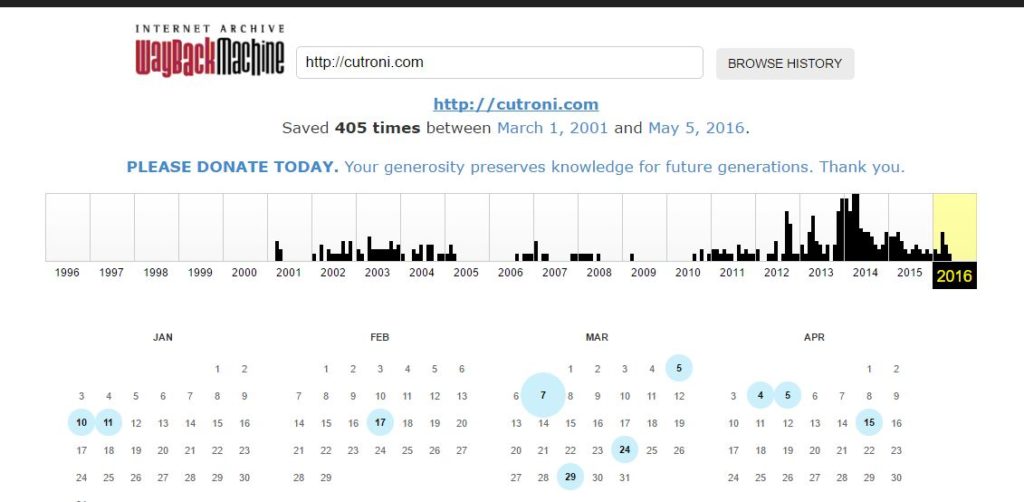
Bookmarklet: Wayback MachineWayback Machine allows you to see what a web page looked like before*. This small bookmark allows you to enter Wayback Machine with one click to analyze the results of the current web page, and then select a date to see what the web page looked like in different periods. (*Note: Not every web page will be accessed!)
8. Check the Page Speed Insights of the current web page
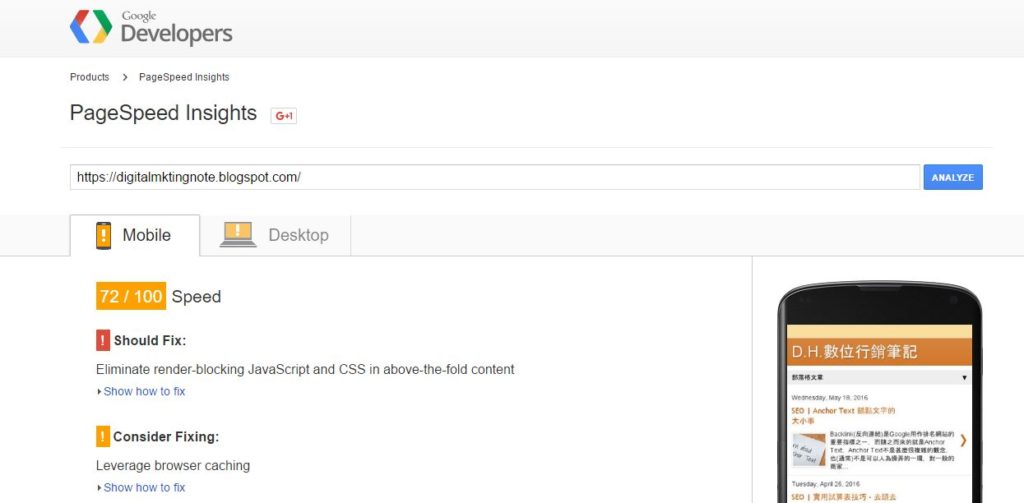
Bookmarklet: Google Page Speed InsightsPeople with some experience should be familiar with this tool. It can analyze the reading speed of web pages. This small bookmark saves you from opening new tabs, searching, copying and pasting. It can be done with one click!
9. Alt Tag that shows all images on this web page
Bookmarklet: Show All Alt TagOne click will pop up all the images on the webpage and their Alt Tags, making it easy to quickly check whether there are any important images that you have forgotten to add appropriate keywords.
(One drawback is that its format is quite ugly. Sometimes you have to pull it sideways to see the Alt Tag field. If there are JavaScript experts who know how to adjust it, please share it! I will be happy to update this information.)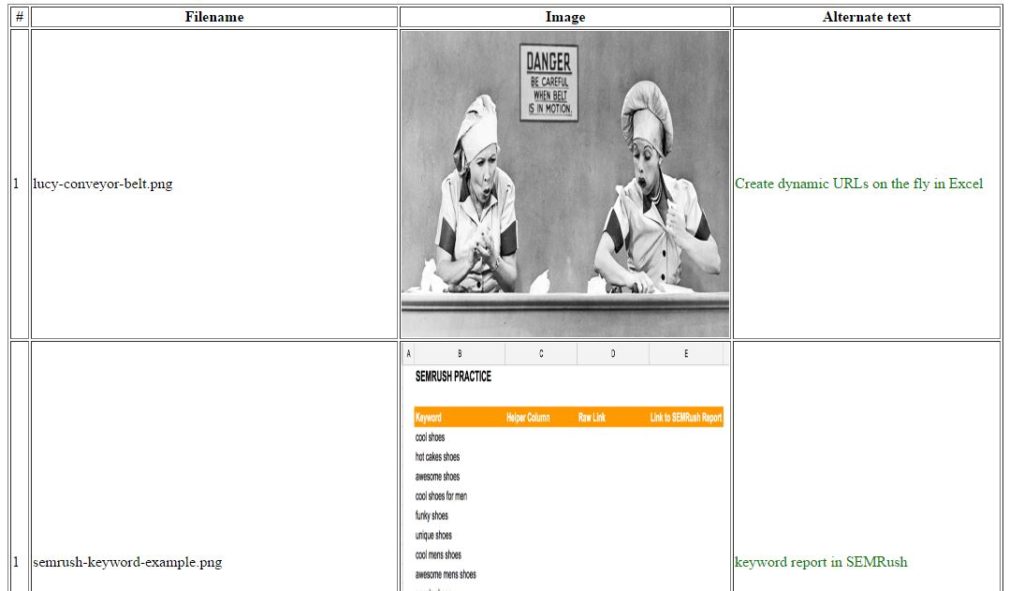
10. SEO toolkit one: QuiSEO
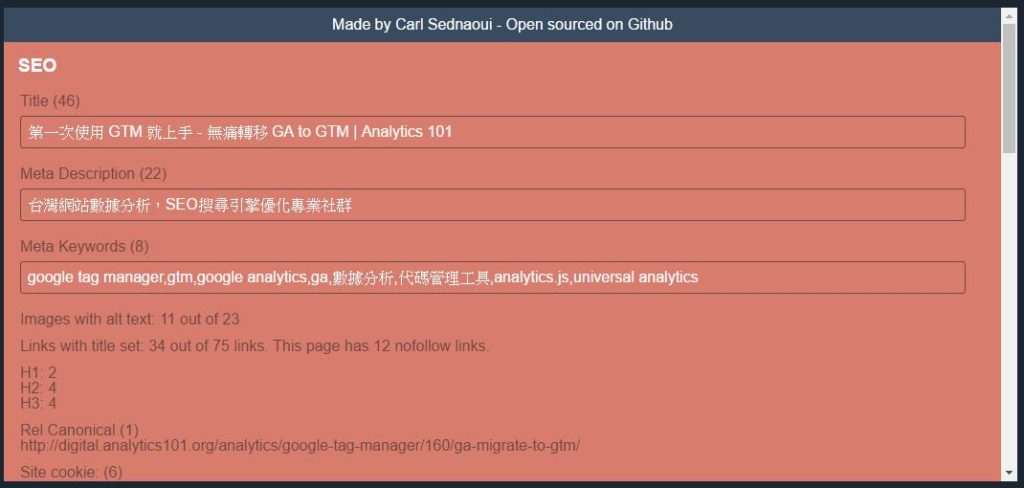
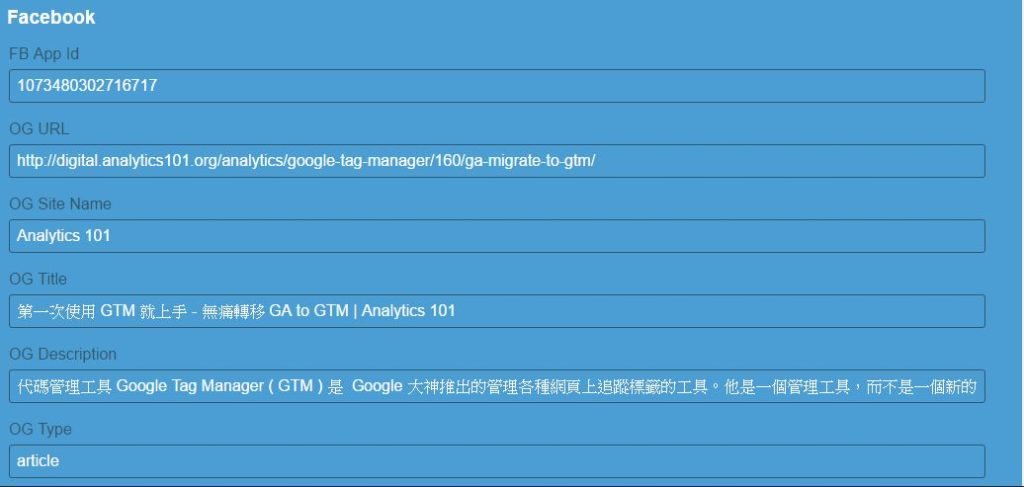
Bookmarklet: SEO Pack - OuiSEObyOne-click toolkit written by Carl Sednaoui, a beautiful window will pop up to see the Title/Description and Canonical Tag of the webpage. Several pictures do not have alt tags, several links have nofollow, Open Graph Meta Tags, Twitter Cards Meta Tags... etc. I like it very much!
Summary
I must first state that the bookmarklet above was not written by me. It is entirely a blessing from its predecessors. However, I have been using this little tool for a while and I really can’t remember where I copied it from. I can’t post links to the original work one by one. There are a few sources that I am sure I have referenced:- Rand Fishkin - 30 SEO Bookmarklets to Save You Time
- Tom Critchlow - Some Nifty SEO Bookmarklets To Make You More Efficient
Interested people can search for “seo bookmarklets” and you will see a lot of articles, but most of them are in disrepair and need to be sorted out~
I hope this article is helpful and gives you the same “WOW” feeling I had when I first came into contact with this concept! I wish you all a good time and feel free to share your thoughts below!
Related reading
An early attempt to generate SEO Bookmarklet using ChatGPT
A record of how to use natural language to generate social posts for the browser bookmarklet tool after ChatGPT became popular and link them back to existing Bookmarklet articles on the website.
Meta Description has been rewritten: the summary of search results may not be accepted in full
Save an early observation: Google may piece together search result snippets from other content on the page, stating that the meta description should be planned together with the actual content of the page.
15 Common Technical SEO Questions: Turn Checklists into Priorities
compiles a list of technical SEO issues for 2023 and puts things like redirects, image alt text, speed, titles, internal links, and indexing back into the order of actual optimization.